|
|
|
| Page Hits : 11155 |
|
 |
Mercantile Exchange Blog |
 |
 |
| |
Jul 2 2013 |
| Did You Know? - Fact 1 |
How to add columns in Orders tab and Watchlist?
You can add the required columns or tabs in any dialog boxes with a right-click on the ‘heading-bar’ of any open dialog box and by subsequently clicking the ‘Columns’ option. After selecting the ‘Columns’ option, a new dialog box named ‘CUSTOMIZATION’ shall appear exhibiting all available column options from where you can select the preferred columns either by double clicking the particular column option or by click-drag-drop procedure. Further, the drop should be made over the existing header after the software displays an arrow, signaling a ‘go-ahead’ for the intended drop. Also, you can reverse the click-drag-drop procedure to remove any individual column-tab from the header-tab and place it back to the ‘Customization’ dialog box. Also there is an option to sort a particular column by clicking on the arrow on a particular header.
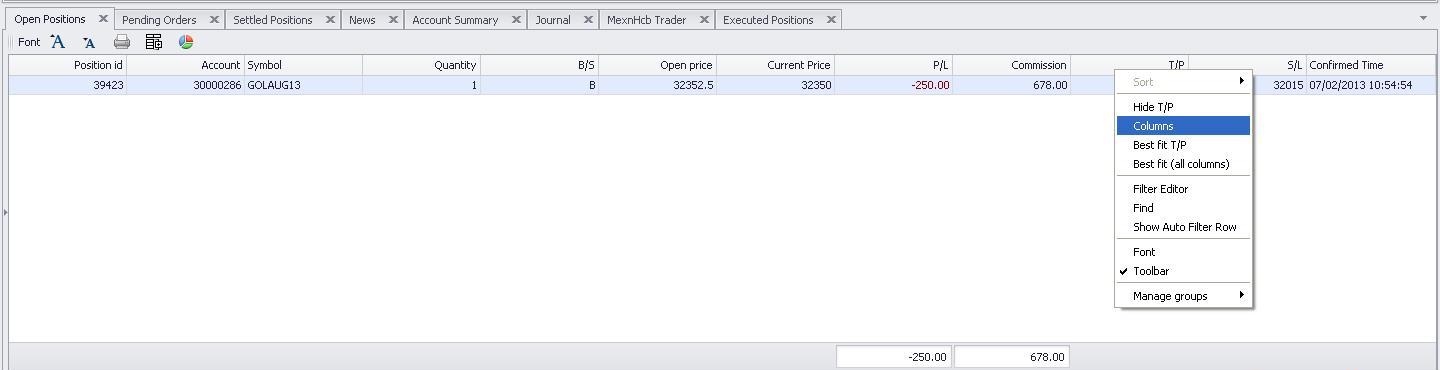
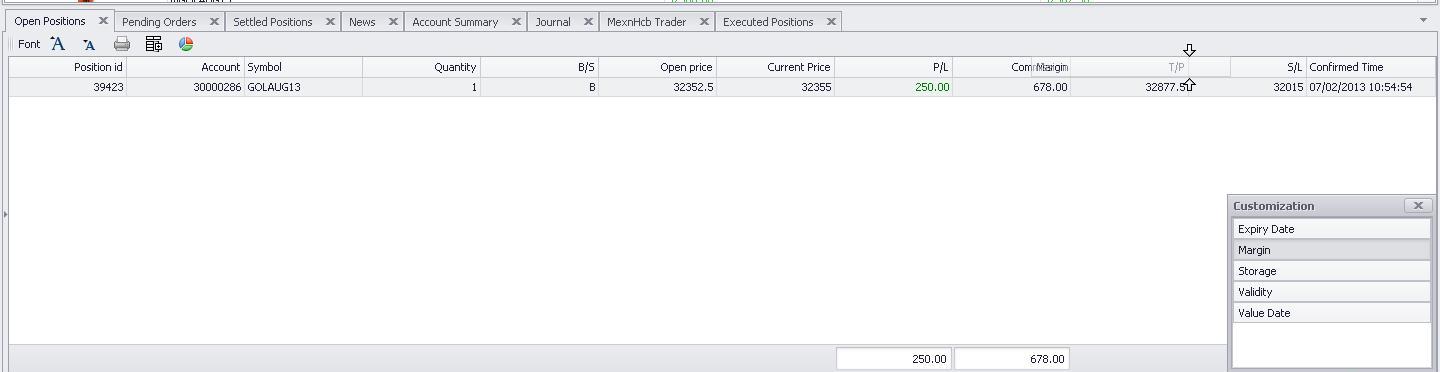
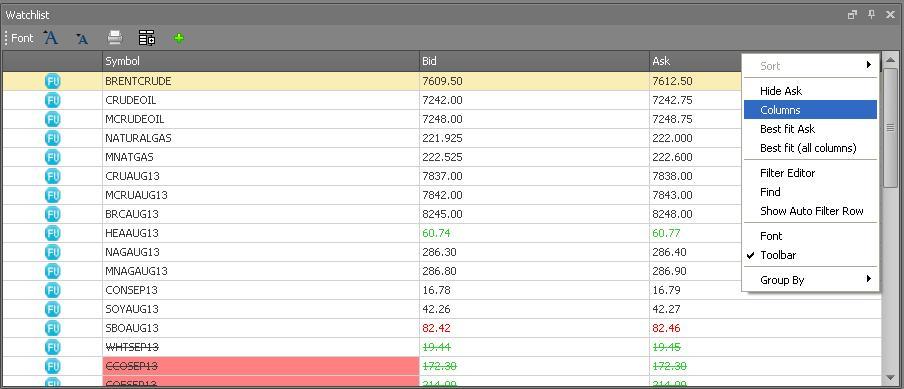
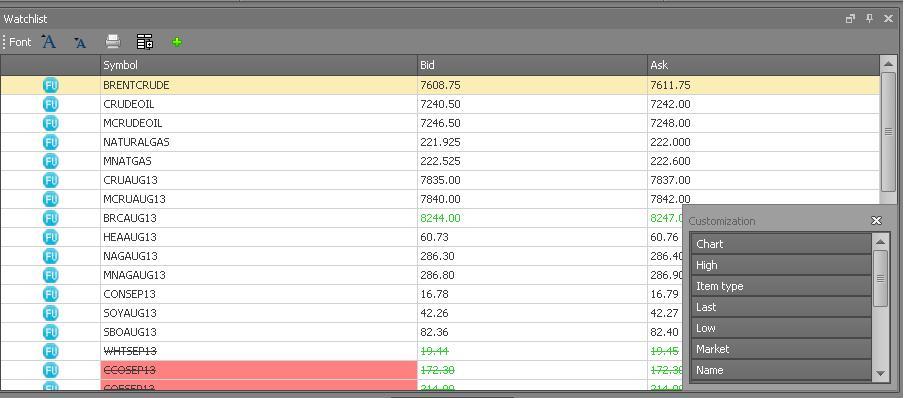
The same procedure applies with the ‘Watchlist,’ if you require adding or removing any columns on the open Watchlist dialog box.
|
|
|
| Posted by at 2:08:18 PM |
| -------------------------------------------------------------------------------------------------------------- |
|
| Leave a Reply |
 39 Visit(s) |
|
|
|
|
| |
0 Comment(s) |
|
|
Blog Home |
|
 |
|
|
 |
|
|
|
|
|


